
cwd in a terminal. All file operations and bash commands execute relative to this folder by default. When you ask the agent to “read the config file” or “run the tests,” it starts here.
You can change the working directory at any point during a conversation.
What Is the Working Directory?
Think of it as opening a terminal and runningcd /path/to/project. Everything the agent does starts from this location:
- Read files and their contents
- Write new files or overwrite existing ones
- Edit files with precise text replacements
- Search with Glob (file patterns) and Grep (content search)
- Execute bash commands in that directory context
Setting Your Working Directory
Per-Session
Click the folder badge in the chat input area to set or change the cwd for your current conversation: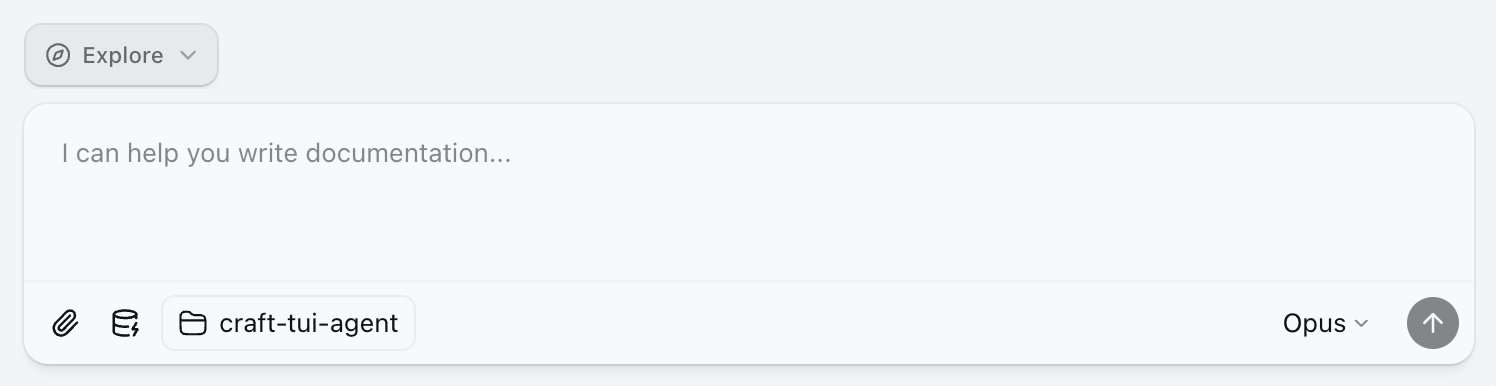
- Folder icon with the current directory name
- Git branch (if the directory is a git repository)
- Choose from recent directories
- Browse for a new folder
- Reset to the session’s default folder
Workspace Default
Set a default working directory for all new sessions in your workspace:- Open Settings → Workspace Settings
- Find Default Working Directory
- Click to select a folder
Available Tools
These SDK-native tools all operate from your cwd by default:
These tools work directly on your filesystem without going through MCP.
Project Context with CLAUDE.md
If your working directory contains aCLAUDE.md file, its contents are automatically injected into the agent’s context. Use this to provide:
- Project structure and conventions
- Build and test commands
- Important files and their purposes
- Team-specific guidelines
Working Directory vs Sources
When to Use Each
Use Working Directory for...
Use Working Directory for...
- Writing and editing code
- Running build scripts and tests
- Git operations (commit, branch, diff)
- Reading project files and configs
- Any task involving local files
Use Sources for...
Use Sources for...
- Accessing external services (GitHub, Linear, Slack)
- Reading from remote APIs
- Connecting to cloud databases
- Accessing files in other locations via MCP filesystem server
- Any task requiring authentication to external services
Use Both Together
Use Both Together
Many workflows combine both:
- Pull issues from Linear (source), then fix them in code (working directory)
- Read documentation from a web API (source), then write implementation (working directory)
- Fetch data from a database (source), then generate reports locally (working directory)
Best Practices
Keep CLAUDE.md updated
Keep CLAUDE.md updated
A well-maintained
CLAUDE.md file helps the agent understand your project structure, conventions, and common tasks. Update it as your project evolves.Use specific directories
Use specific directories
Instead of setting your home folder as the working directory, point to the specific project you’re working on. This keeps the agent focused and improves performance.
Leverage git integration
Leverage git integration
When your working directory is a git repository, the agent can see the current branch and use git commands effectively. Use Explore mode to safely review changes before committing.
Combine with Local Folders
Combine with Local Folders
Need to access files in multiple locations? Use the working directory for your main project and add a local folder for other directories you reference occasionally.